
CH4_File Editing_NcEditor
today
2026-08-24
local_offer
CNC, CADCAM
visibility
97
4. File Editing
Explanation of editing NC program file contents, syntax checking, and
Command Set operations.
4.1 Command Set
4.1.1 Use Complete Command Set
Example: Add the program start from the
Command Set
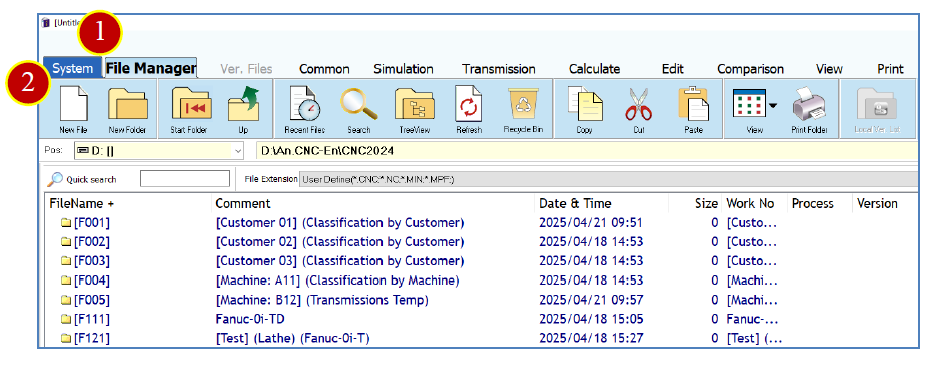
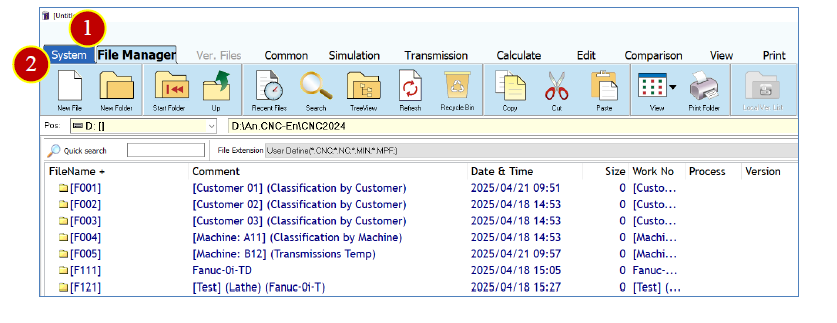
(1) Click on the 【 File Manager 】 tab.
(2) Click on 【 New File 】
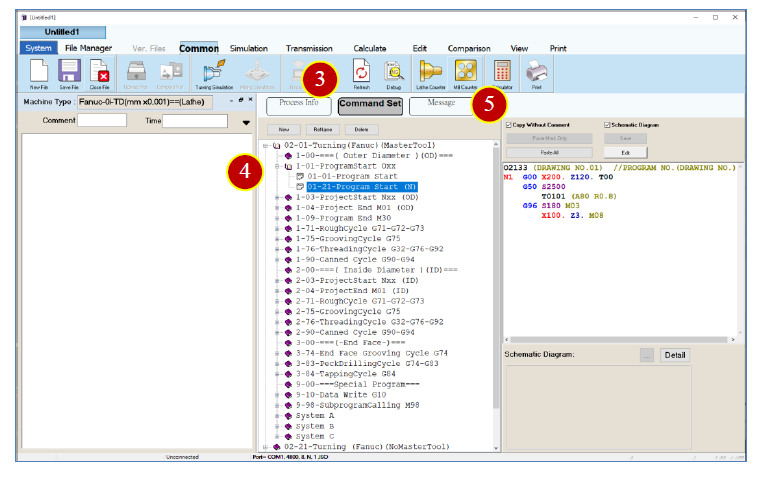
(3) Click on 【 Command Set 】
(4) Select 【 02 01 Lathe (FANUC) (with reference tool) 】 【 1 01 Program Start Oxx 】
【 01 21 Program Start (with starting N) 】
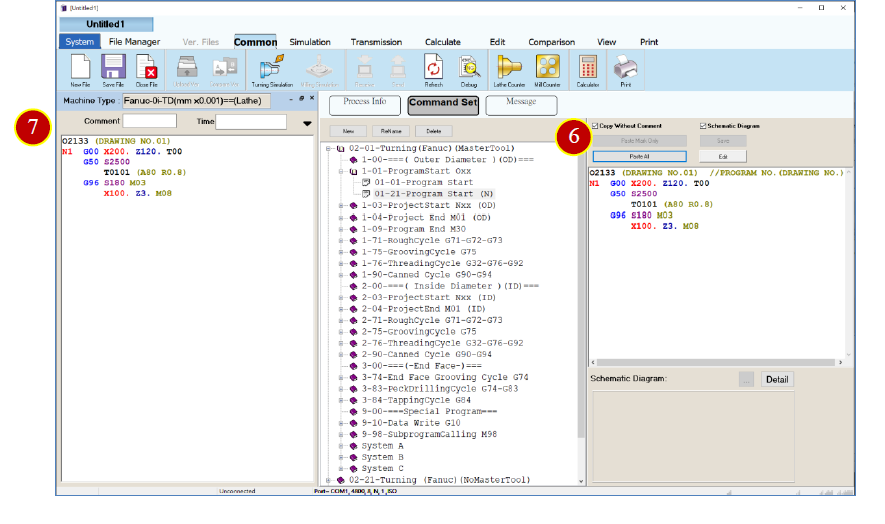
(5) Check the option 【 C opy Without C omment 】
(6) Click on 【 Paste A ll 】
(7) The program edit area will display the pasted program.
4.1.2 Use Partial Command Set
Example: Add part of the program start settings from the
Command Set
(1) Click on the 【 File Manager 】 tab.
(2) Click on 【 New File 】
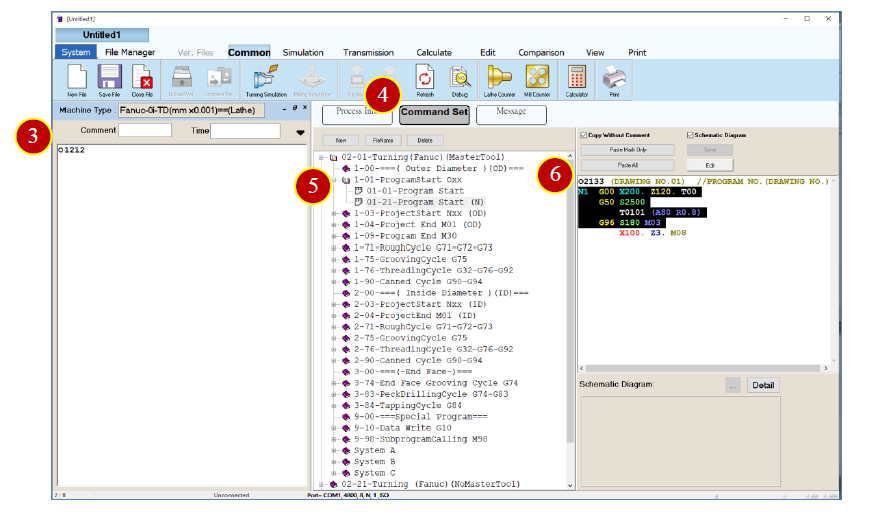
(3) Enter the program number in the edit area.
Example: O1212.
(4) Click on 【 Command Set 】
(5) Select 【 02 01 Lathe (FANUC) (with reference tool) 】 【 1 01 Program Start Oxx 】
【 01 21 Program Start (with starting N) 】
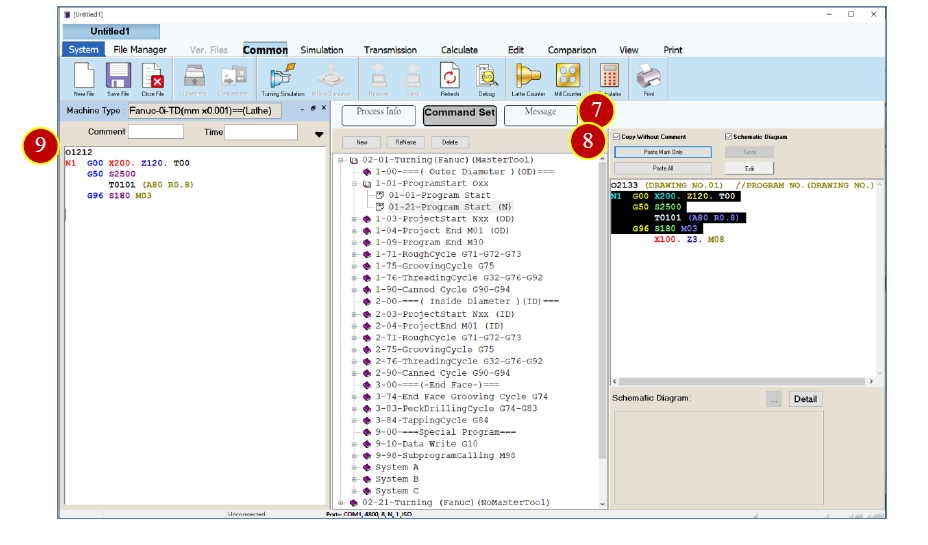
(6) Select the portion of the program.
Example: N1 G00 X200. Z120. T00...
(7) Check the option 【 C opy Without C omment 】
(8) Click on 【 Paste Mark Onl y 】
(9) The program edit area will display the pasted program.
4.1.3 Rename Command Set
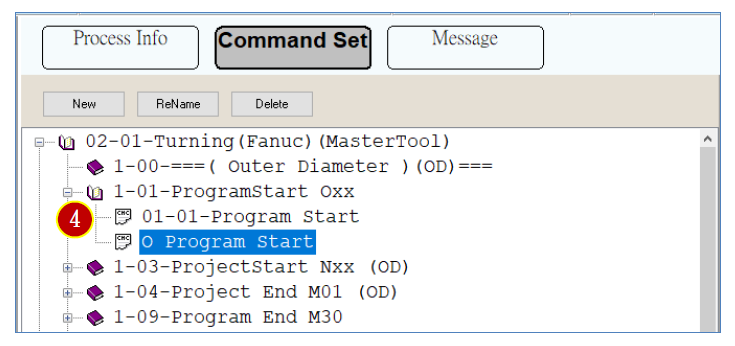
Example: Rename
【 1 01 Program Start Oxx 】 【 01 21 Program Start (with starting N) 】
to 【 O Program Start 】
(1) Click on 【 Command Set 】
(2) Select 【 02 01 Lathe (FANUC) (with reference tool) 】 【 1 01 Program Start Oxx 】
【 01 21 Program Start (with starting N) 】
(3) Click on 【 Re N ame 】
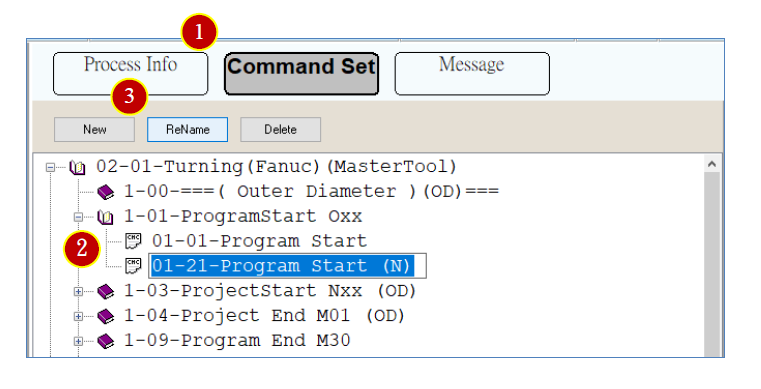
(4) Enter "O Program Start_" and press [Enter].
4.1.4 Add Command Set
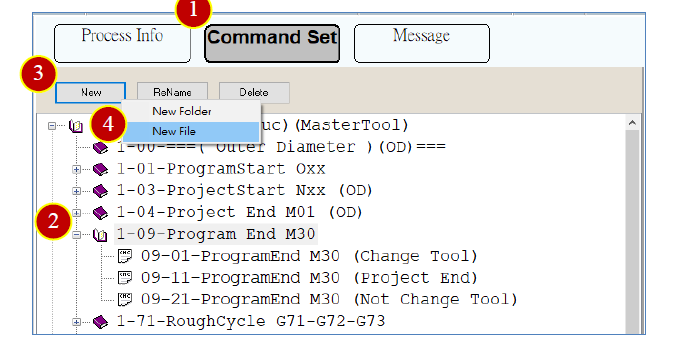
Example: Add
【 Selective Loop 】 to 【 Program End 】
(1) Click on 【 Command Set 】
(2) Select 【 1 09 Program End M30 】
(3) Click on 【 New 】
(4) Click on 【 New File 】
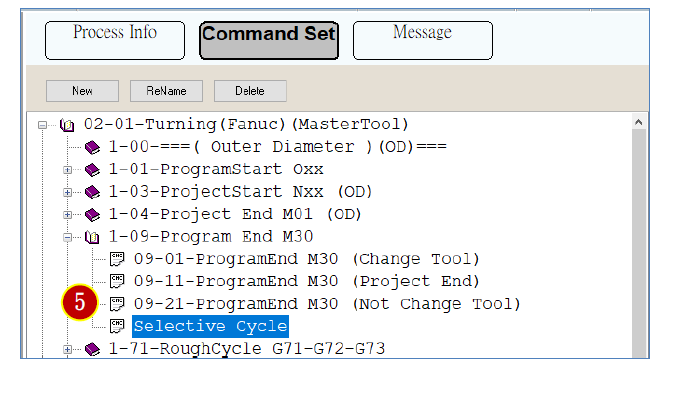
(5) Enter "Selective cycle " and press [Enter]
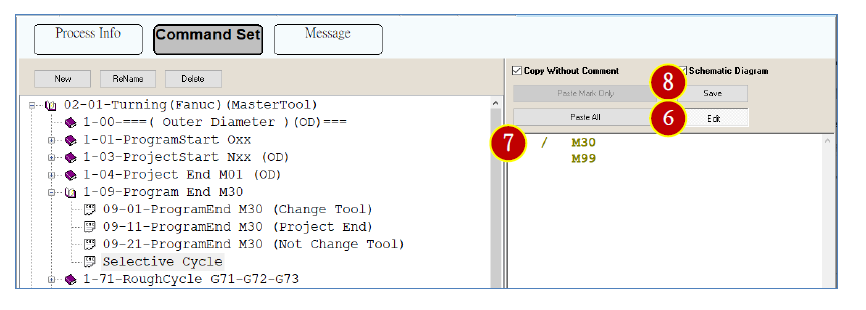
(6) Click on 【 Edit 】
(7) Enter the program.
Example: /M30
M99
(8) Click on 【 Save 】
4.1.5 Delete Command Set
Example: Delete the
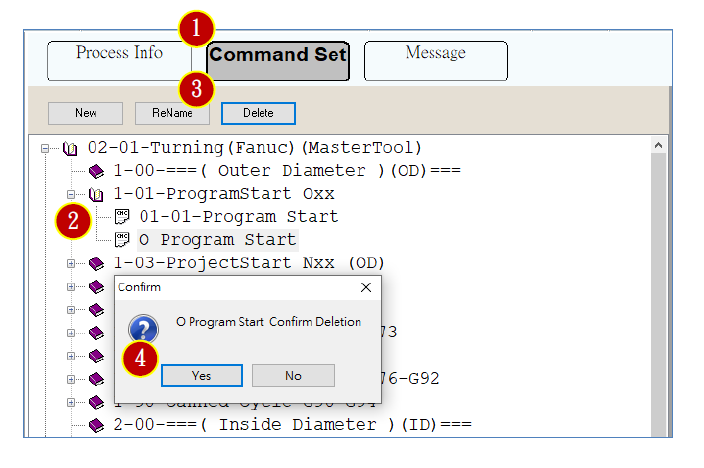
Command Set 【 O Program Start 】 under 【 Program Start Oxx 】
(1) Click on 【 Command Set 】
(2) Select 【 1 01 Program Start Oxx 】 【 O Program Start 】
(3) Click on 【 Delete 】
(4) Click 【 Yes 】 to confirm and complete.
4.2 Save, Save As, and Refresh
4.2.1 Save
Save the currently edited CNC program content.
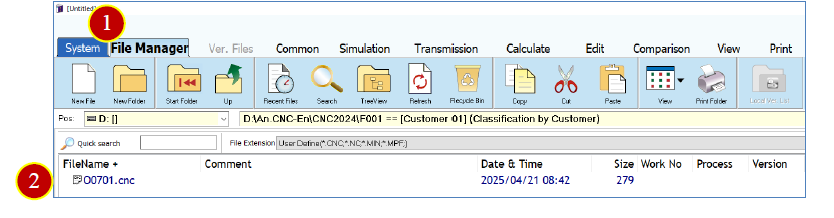
Example: Edit and save the file F001 O0701.CNC.
(1) Click the 【 File Manager 】 tab.
(2) Double click 【 F001 】 【 O0701.CNC 】 to open the program and enter edit mode.
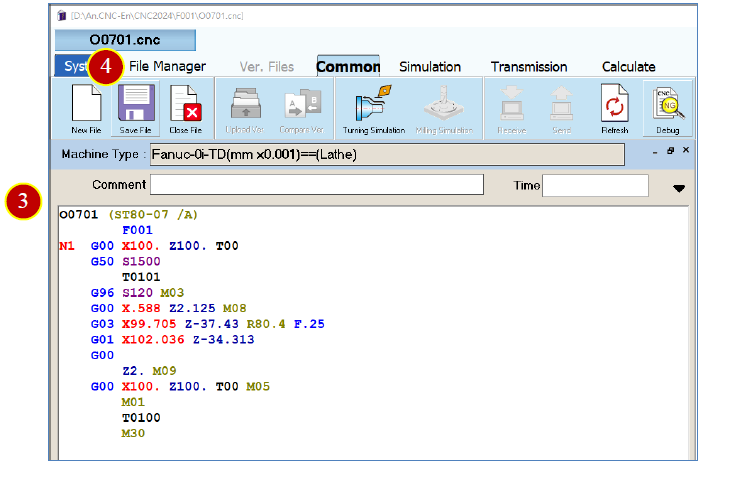
(3) Edit the program.
Example: Add a comment (ST80 07 /A)
(4) Click 【 Save File 】
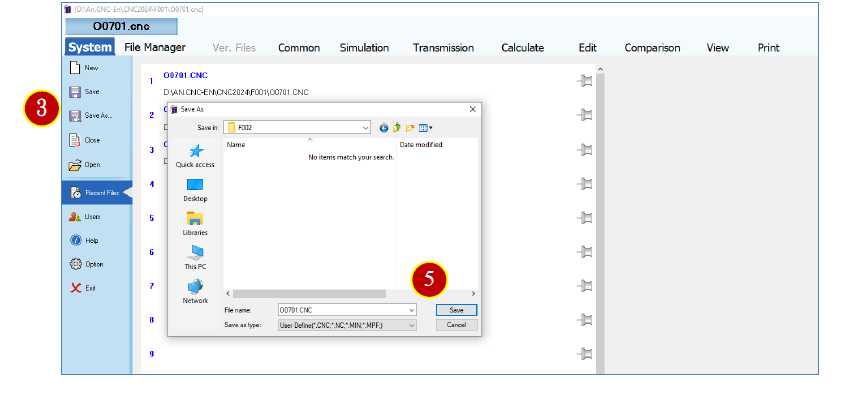
4.2.2 Save As File
Save the current CNC program as a new file.
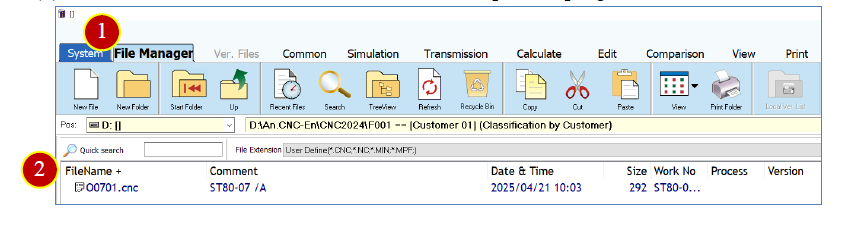
Example: Save F001 O0701.CNC as a new file in F002.
(1) Click the 【 File Manager 】
(2) Double click 【 F001 】 【 O0701.CNC 】 to open the program and enter edit mode.
(3) Click the system menu 【 System 】 【 Recent Files 】。
(4) Select folder F002 。
(5) Click 【 Save 】。
4.2.3 Refresh
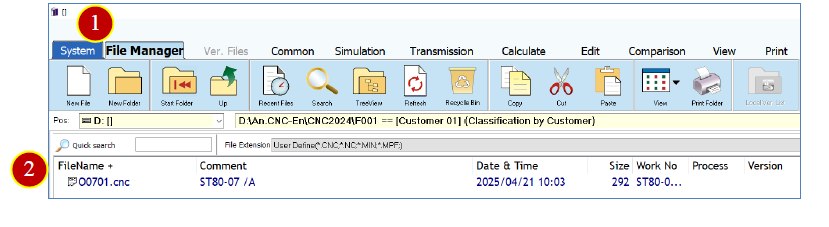
Refresh the current CNC program, including colors, fonts, and sizes.
Example: Refresh
(1) Click the 【 File Manager 】 tab.
(2) Double click 【 F001 】 【 O0701.CNC 】 to open the program and enter edit mode.
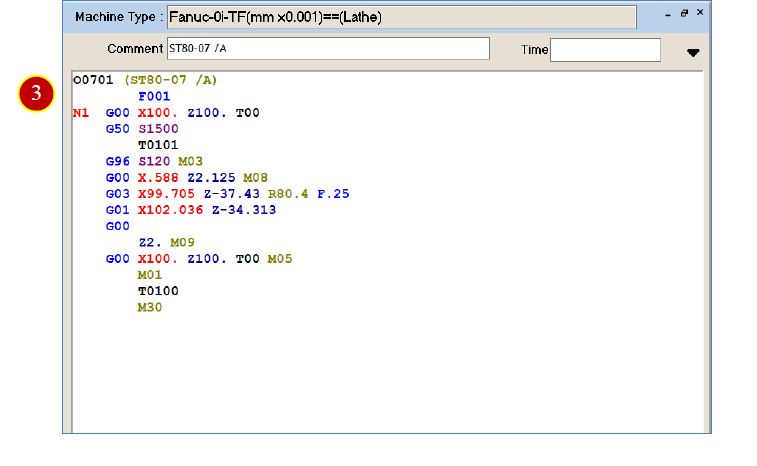
(3) Modify the CNC program.
Example: N1 G00 X200. Z120. T00
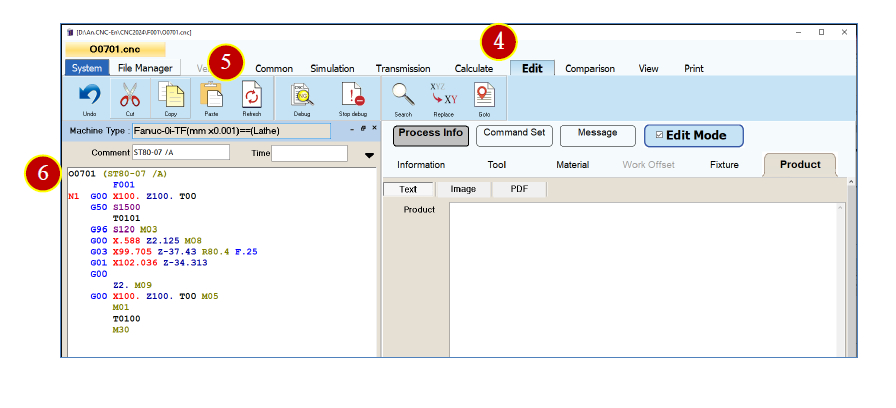
(4) Click the 【 Edit 】 tab.
(5) Click 【 Refresh 】
(6) Colors, size, and position adjustments are complete.
4.3 Copy, Move, and Undo
4.3.1 Copy
Example: Reuse part of the content from F121
O3802.CNC.
(1) Click the 【 File Manager 】 tab.
(2) Double click 【 F121 】 【 O3802.CNC 】 to open the program and enter edit mode.
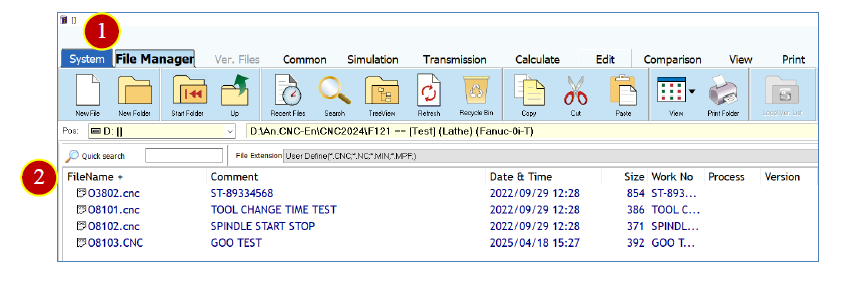
(3) Left click to select a section of the program.
Example: G00 X200. Z120. T00 0
(4) Click the 【 Edit 】 tab.
(5) Click 【 Copy 】
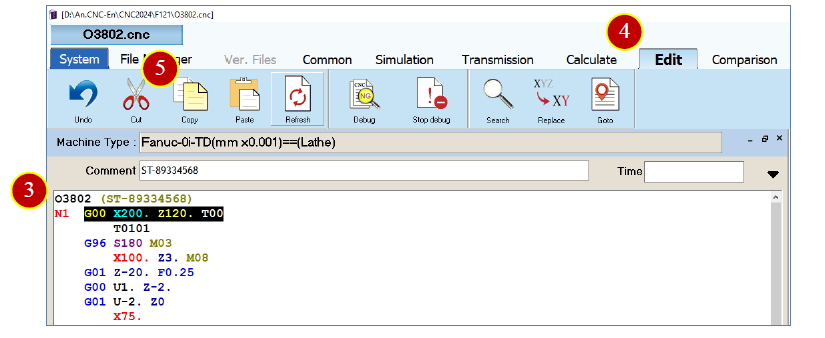
(6) After operation N8, enter [N9].
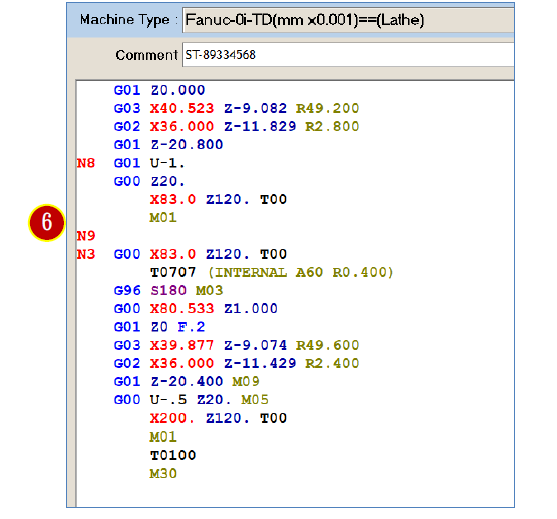
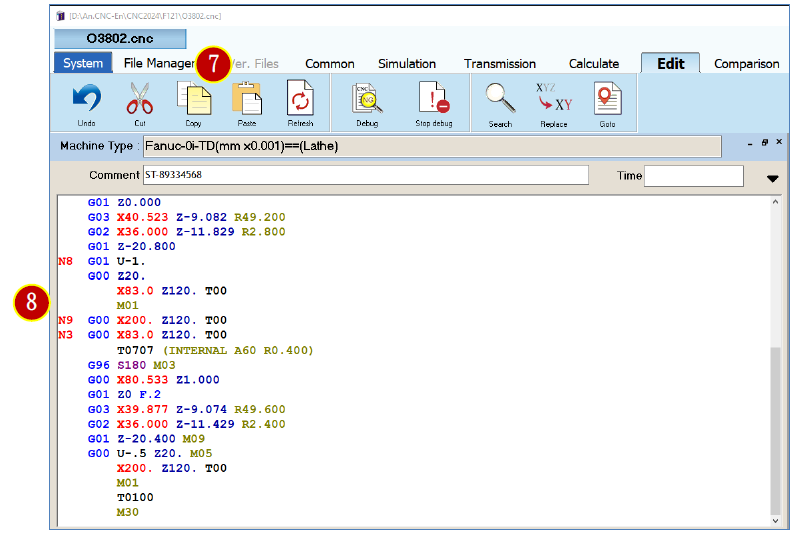
(7) Click 【 Paste 】
(8) The copied program will be displayed.
4.3.2 Move
Example: Move the content from N2 position to N3 position in
F168 O1041.CNC.
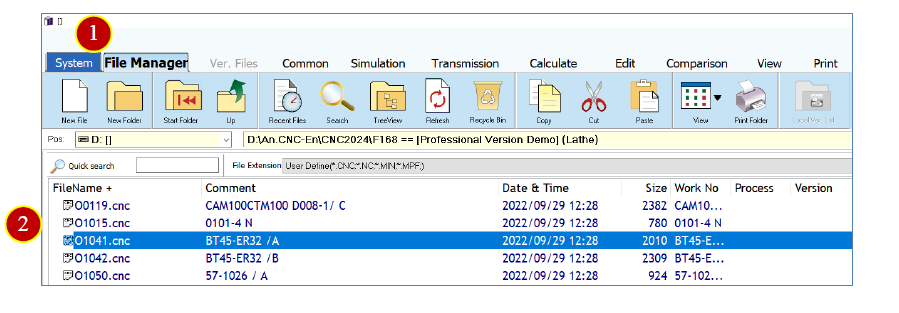
(1) Click the 【 File Manager 】 tab.
(2) Double click 【 F168 】 【 O1041.CNC 】 to open the program and enter edit mode.
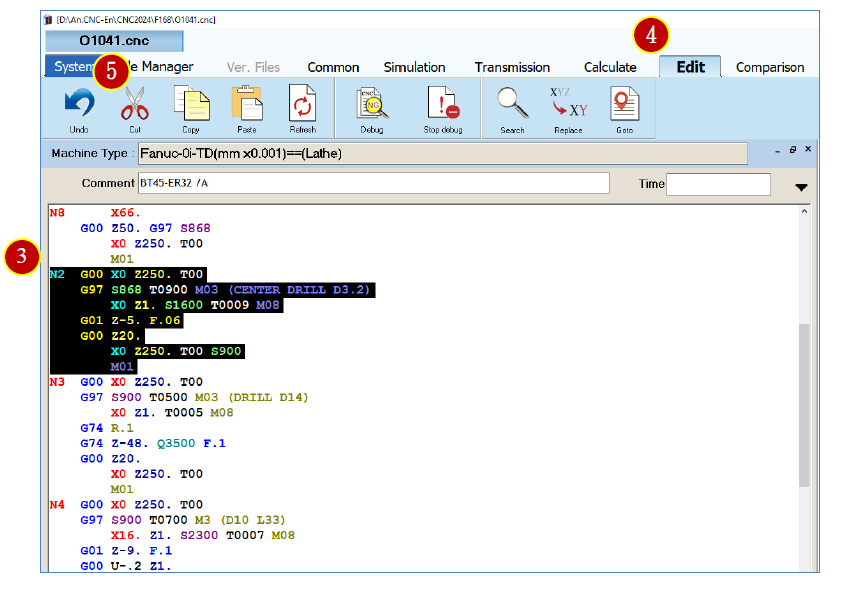
(3) Left click to select the program to be moved.
Example: N2 G0 X0 Z250. T0...
(4) Click the 【 Edit 】 tab.
(5) Click 【 Cut 】
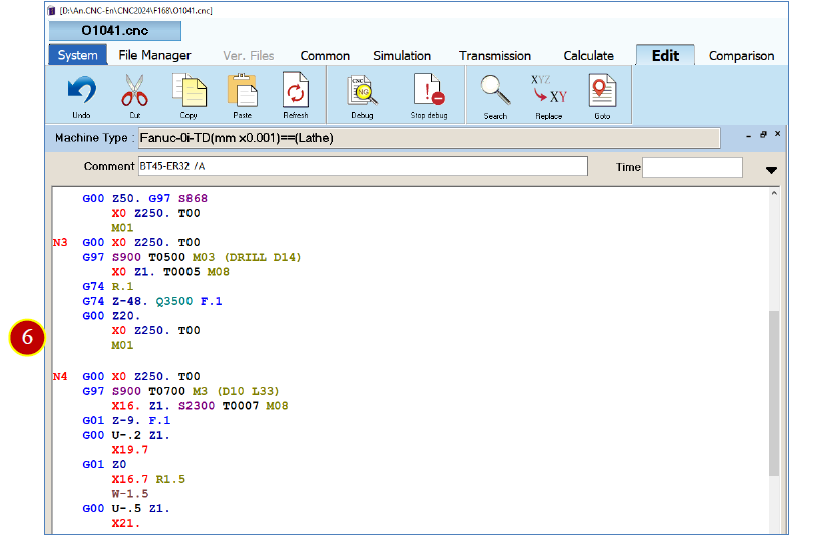
(6) After the N3 operation, press [Enter].
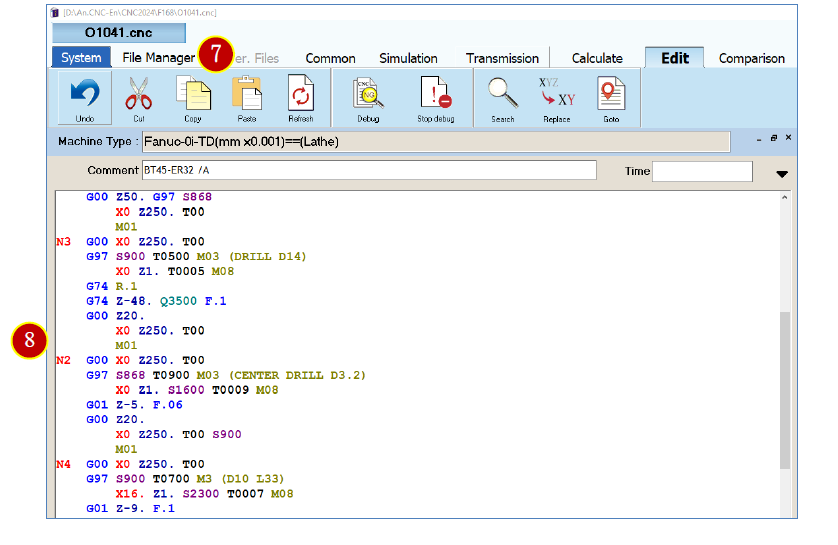
(7) Press 【 Paste 】
(8) Display the cut program.
4.3.3 Restore
Restore the current CNC program content to the previous state.
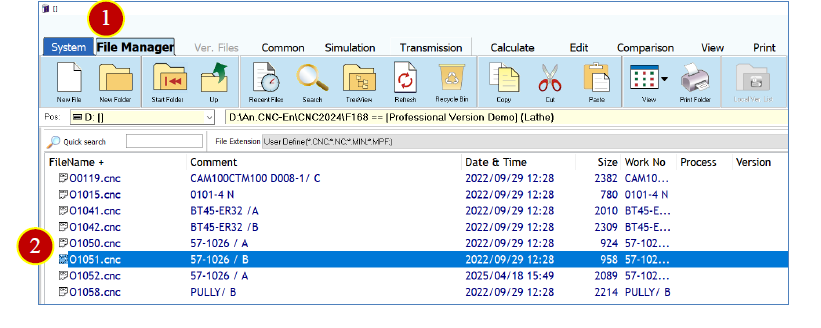
Example: Restore the deleted program F168
O1051.CNC.
(1) Click the 【 File Manager 】 tab.
(2) Double click 【 F168 】 【 O1051.CNC 】 to open the program and enter edit mode.
(3) Left click to select a section of the program.
Example: G50 S700 T1200…
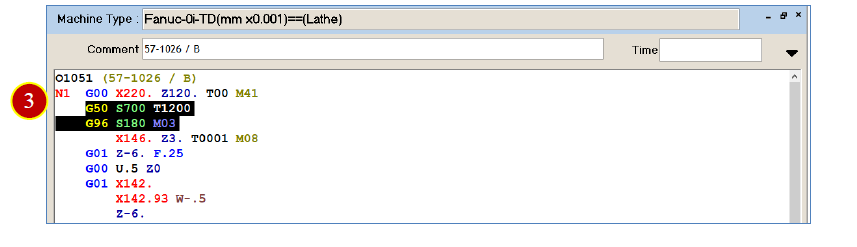
(4) Press [Delete] to delete.
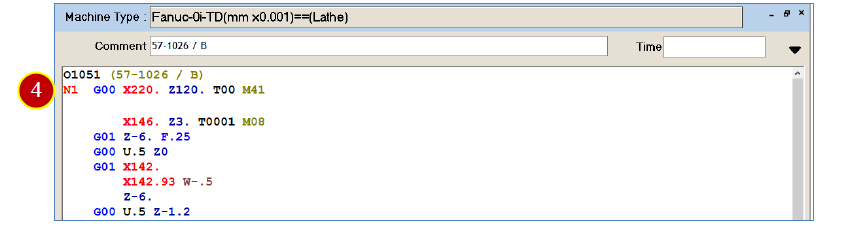
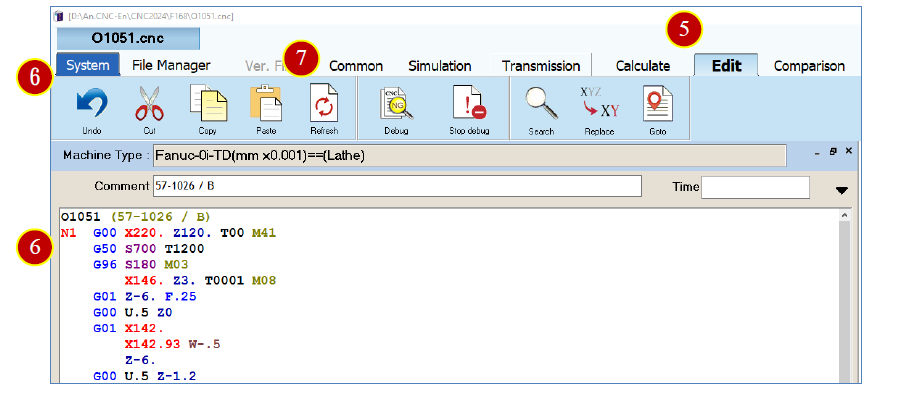
(5) Click the 【 Edit 】 tab.
(6) Click 【 Undo 】 , and the program will be restored.
(7) Click 【 Refresh 】
4.4 Syntax Check
Perform a syntax check on the CNC program code to prevent code that does not conform to
CNC format from affecting normal operation or causing a crash.
4.4.1 Full File Check
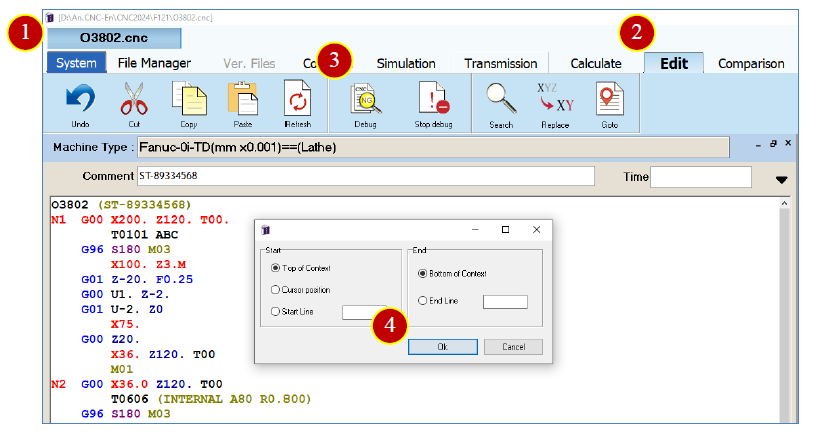
Example: Perform a full
file syntax check on the F121 O3802.CNC file.
(1) Open the F121 O3802.CNC file.
(2) Click the 【 Edit 】 tab.
(3) Click 【 D ebug 】
(4) Click 【 OK 】
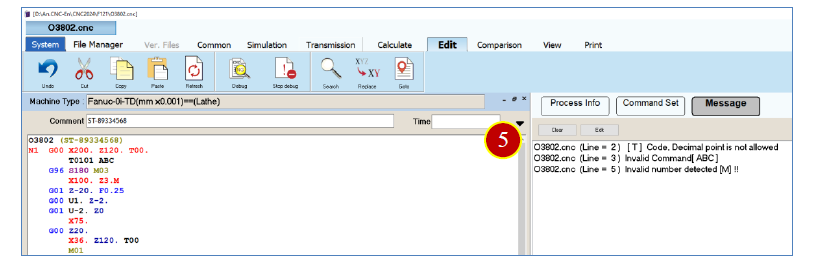
(5) When an error is detected, it automatically switches to the 【 Message 】
tab and displays the error details.
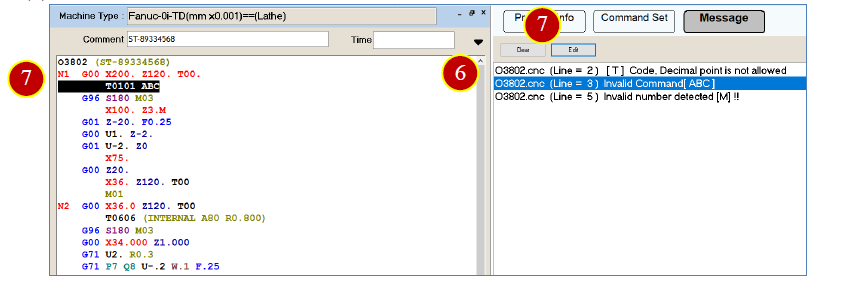
(6) Select a single error message.
Example: Incorrect command (ABC)
(7) Click 【 Edit 】 , and the cursor will move to the error
4.4.2 Stop Syntax Check
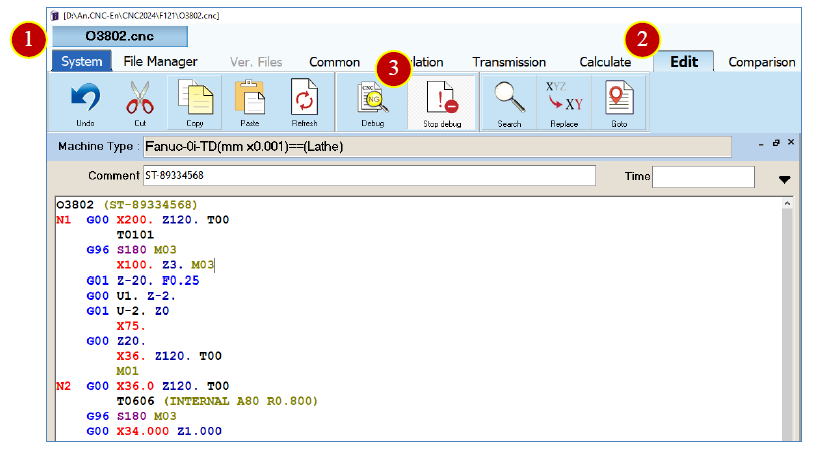
Example: Stop syntax checking.
(1) Open any file.
Example: F121 O3802.CNC.
(2) Click the 【 Edit 】 tab.
(3) Click 【 Stop debug 】 to disable the program code error prompt
function.
4.5 Search
Search for a specified string in the CNC file.
4.5.1 Search for T Code
Example: Search for T01 in the F121
O3802.CNC file.
(1) Open the F121 O3802.CNC file.
(2) Click the 【 Edit 】 tab.
(3) Click 【 Search 】
(4) Enter the search target T01.
(5) Click 【 Next (F5) 】
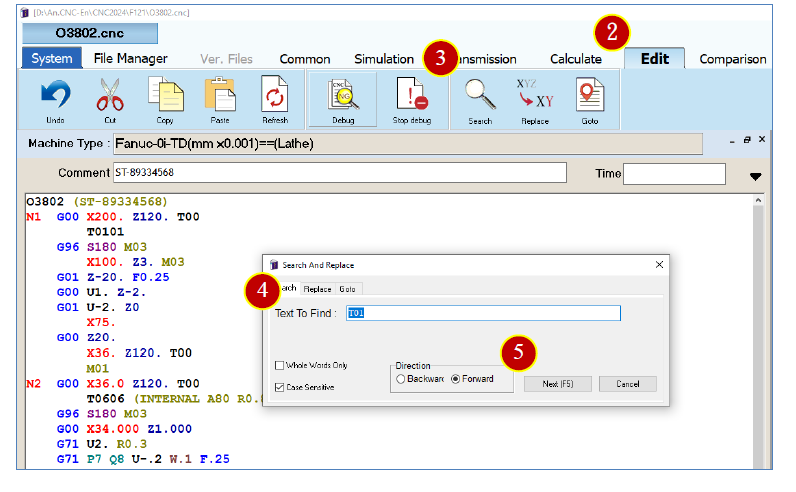
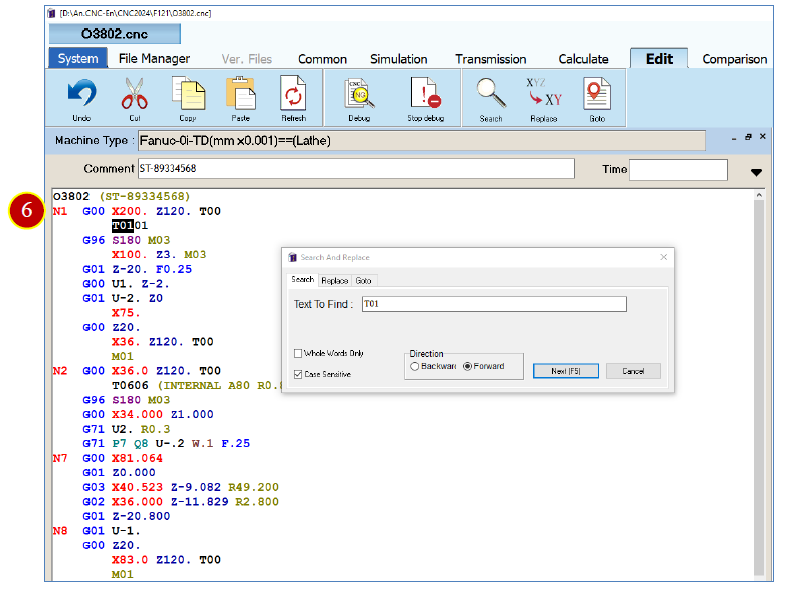
(6) The cursor will automatically move to the target location.
※Click 【 Next 】 or press [F5] to move to the next one.
4.6 Process Description, Fixtures, and Finished Products
Write descriptions and related information for the process, fixtures, and finished products.
4.6.1 Modify Process Description
Example: Modify the process description for F168
O1041.CNC.
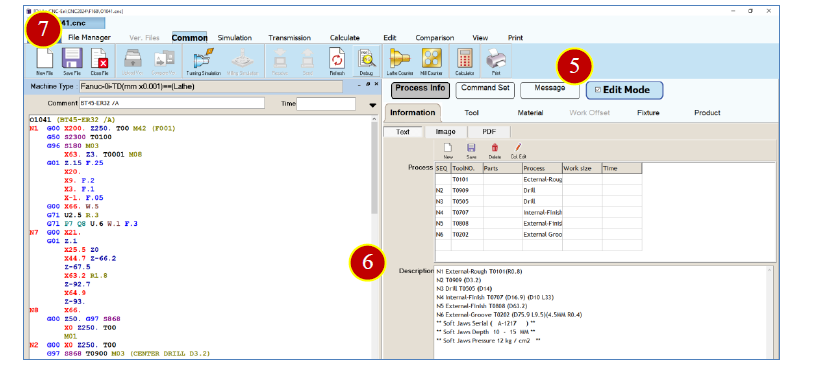
(1) Click the 【 File Manager 】 tab.
(2) Double click 【 F168 】 【 O1041.CNC 】 to open the program.
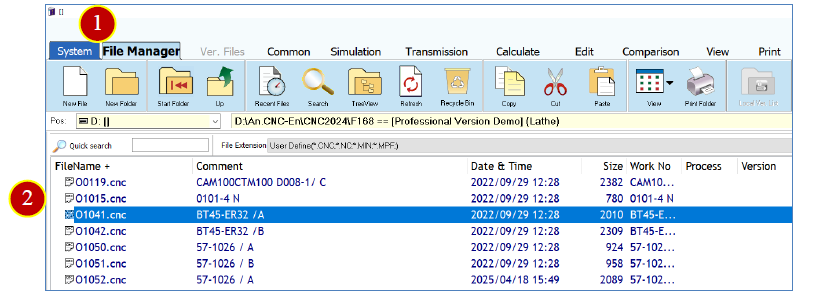
(3) Click 【 Process Info 】
(4) Click 【 Information 】 【 Process Description 】
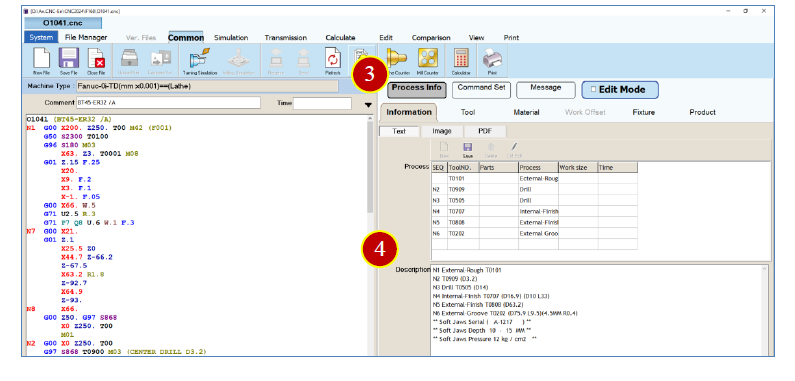
(5) Check the Edit Mode box to enter edit mode.
(6) Modify the 【 Process Description 】
Example: N1 Outer roughing T0101 (R0.8).
(7) Click 【 Save 】
4.7 Design Diagram
Add diagrams to the process description, fixtures, and finished products to better
understand the shape of the process, fixtures, and final product, compensating for the
limitations of text descriptions.
4.7.1 Display Process Description Design Diagram
Example: Display the process description design diagram for F168
O1041.CNC.
(1) Click the 【 File Manager 】 tab.
(2) Double click 【 F168 】 【 O1041.CNC 】 to open the program.
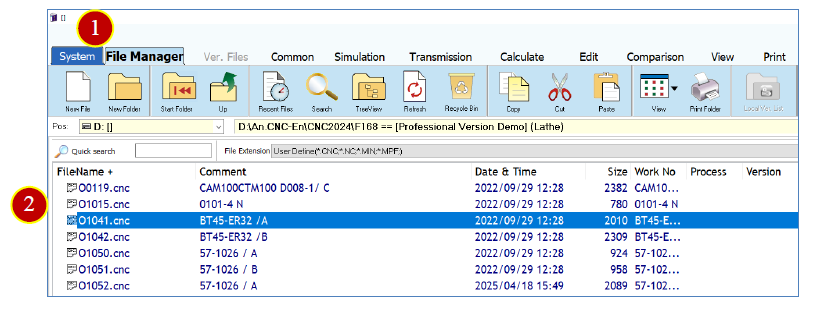
(3) Click 【 Process Info 】
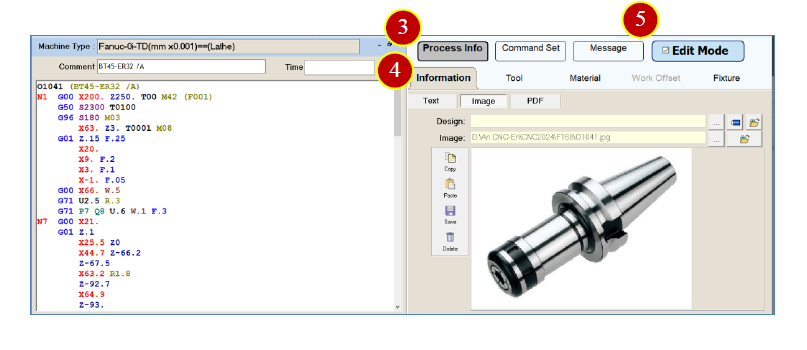
(4) Click 【 Information 】 【 Image 】
(5) Check the Edit Mode box to ent er edit mode.
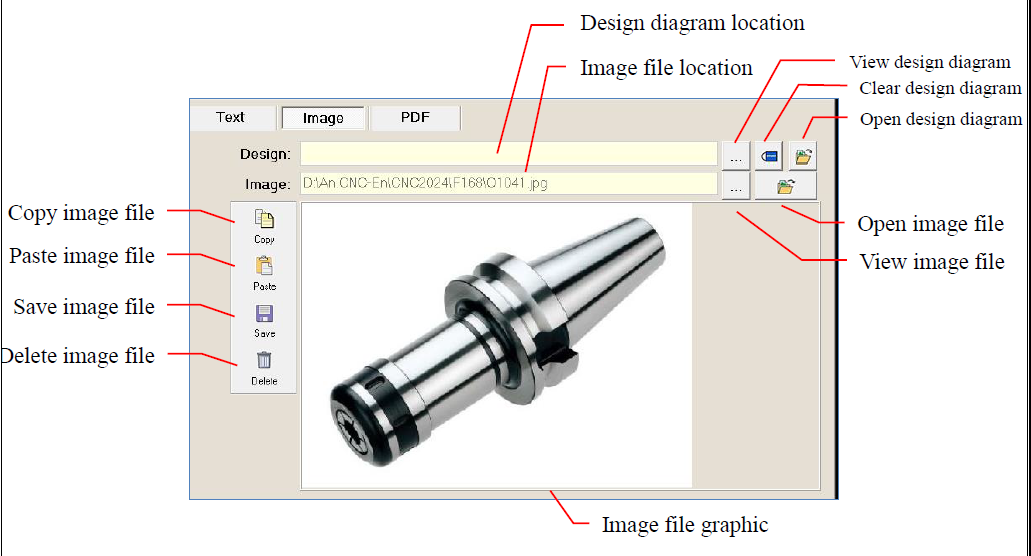
4.7.2 Design Diagram Operations
4.8 Calculator
The calculator can be used for manual calculations and unit conversions.
4.8.1 Open Calculator
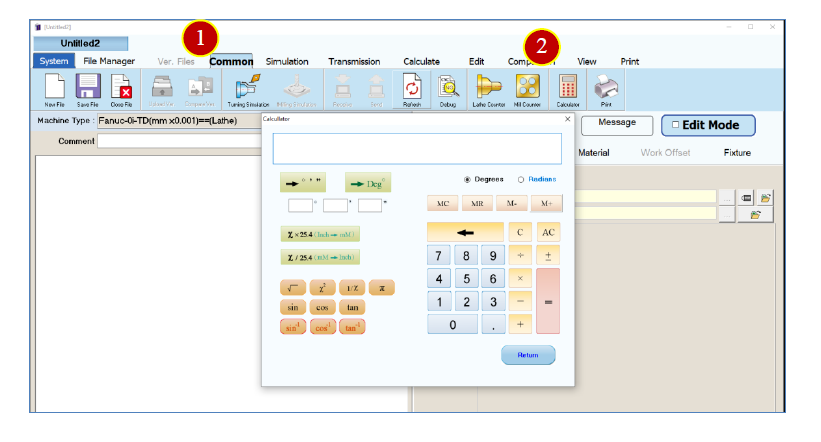
Example: Launch the calculator.
(1) Click the 【 Common 】 tab.
(2) Click 【 Calculator 】 to display the calculator.
4.8.2 Operate Calculator
The calculator is divided into the following areas based on functionality.
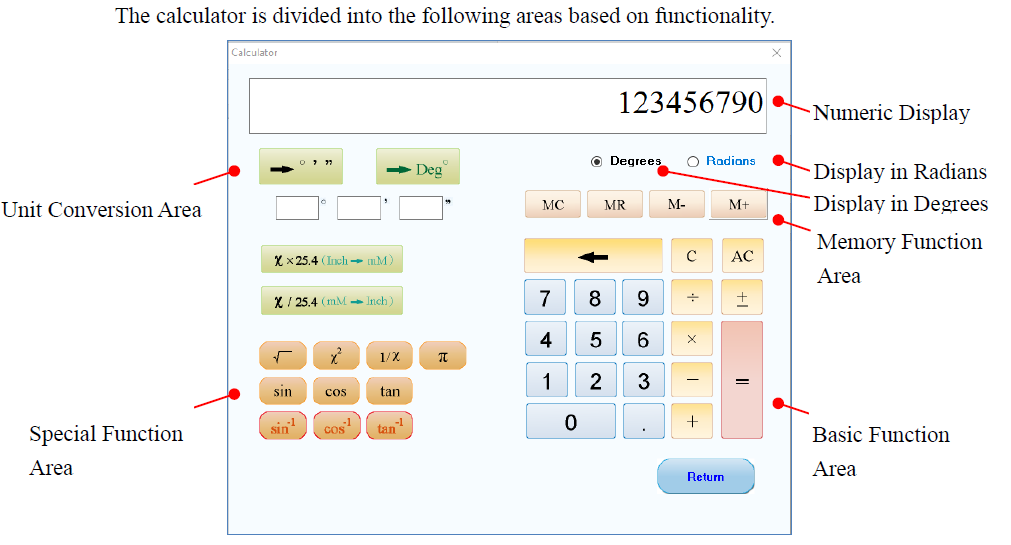
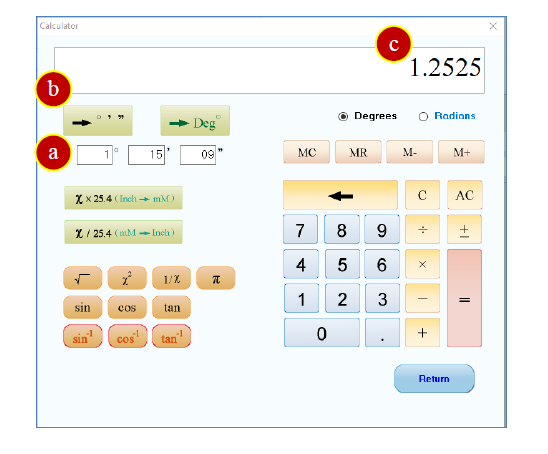
(1) Unit Conversion Area Convert decimal degrees to degrees, minutes, and seconds
display
Example: Convert 1.2525 degrees to degrees minutes seconds format.
(a) Enter [1.2525].
(b) Press 【 ➨ 】
(c) The result is displayed in degrees, minutes, and seconds.
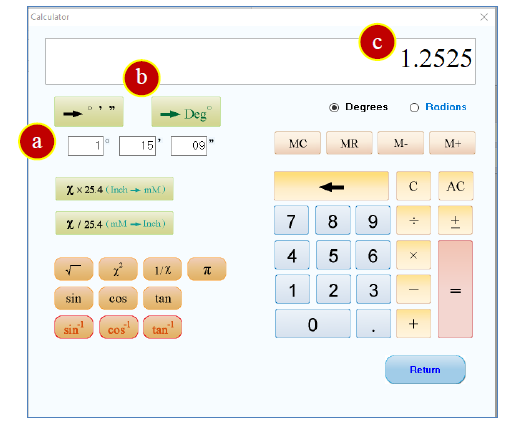
(2) Unit Conversion Area Convert degrees, minutes, and seconds to decimal degrees
Example: Convert 1°15’09” to decimal degrees.
(a) Enter 1°15’09”.
(b) Press 【 ➨ Deg° 】
(c) The result is displayed in decimal degrees.
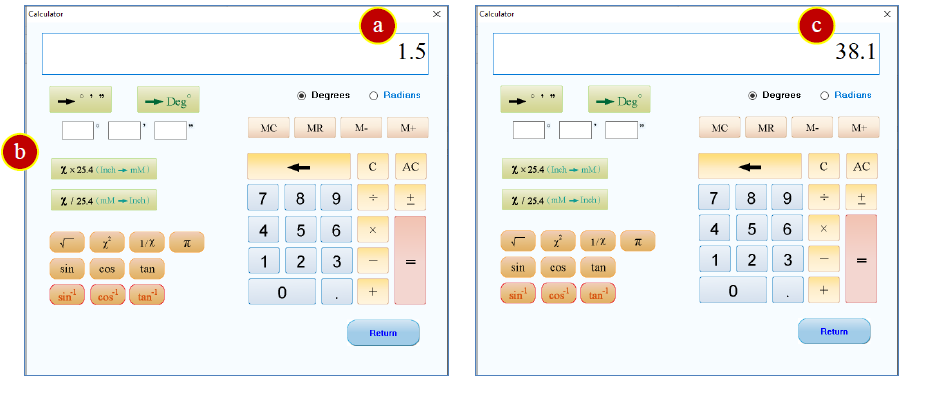
(3) Unit Conversion Area Convert inches to metric units (mm)
Example: Convert 1.5 inches to metric units (mm).
(a) Enter [1.5].
(b) Press 【 X×25.4(Inch ➨ mm) 】
(c) The result is displayed in metric units (mm).
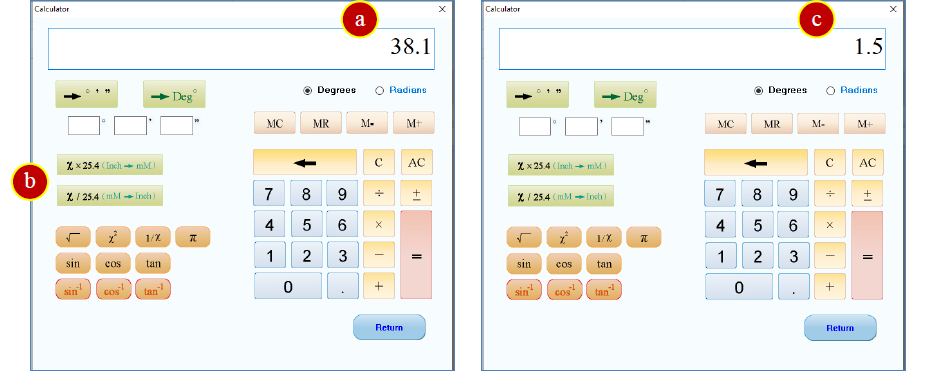
(4) Unit Conversion Area Convert metric mm to inches
Example: Convert 38.1 mm to imperial units (inches).
(a) Enter [38.1].
(b) Press 【 X/25.4(mm ➨ Inch) 】
(c) The result is displayed in imperial units (inches).
文章區塊